
ZG-View Online Help
2D-drawing display also for 3D

FAQ, Help & Support
We will gladly help you!
If you have any questions or problems with our product, email us: office@dccs.eu or call us: Tel.: +43 316 4116 -225. We will gladly help you.
System requirements:
PC with Windows 8.1, 10 or 11 with at least 2 GB RAM or Windows 2019 Server with at least 32 GB RAM
ZG-View-help
Zooming
Use "+" to enlarge and "-" to reduce the size of the zoom sector. With "ESC" you leave the zoom section. Now the full document should be shown.
Hint: The functions are also available in the "Zoom" menu and when clicking the right mouse button.
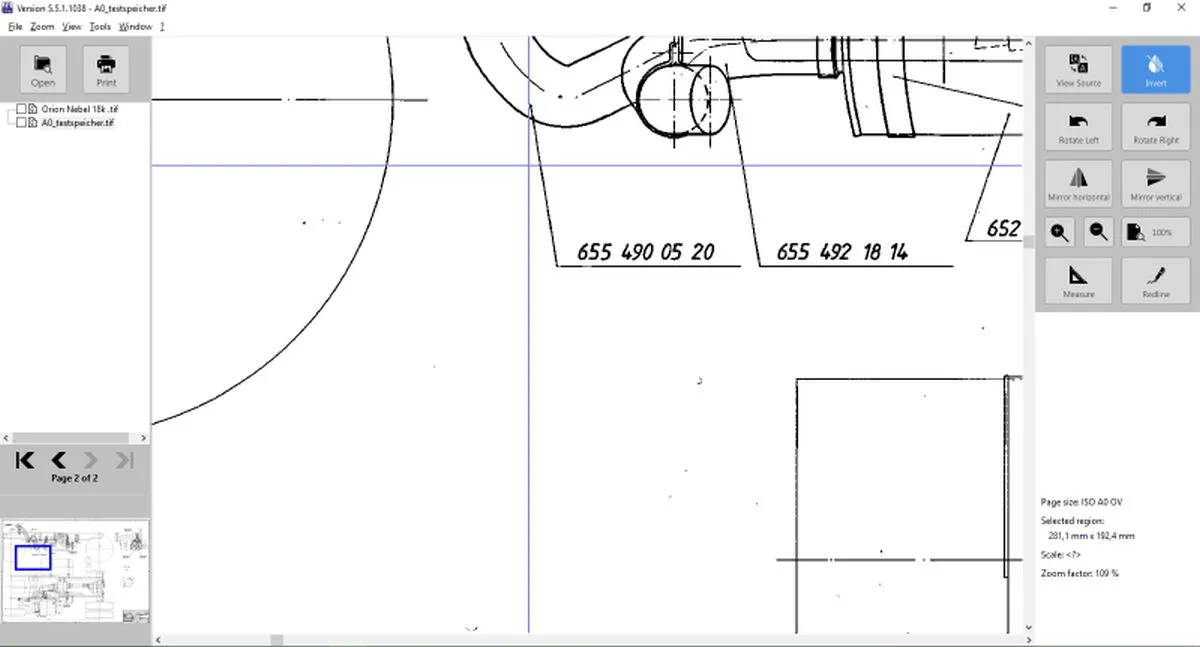
Moving the zoom frame
To change the position of the zoom frame, hold down the left+right mouse button and move the frame to the desired position with the mouse.
The zoom frame can also be moved "up" or "down" with the scroll wheel of the mouse. If you keep the control key (Ctrl) pressed, the zoom frame moves "to the left" or "to the right".
Adjust a fix zoomfactor
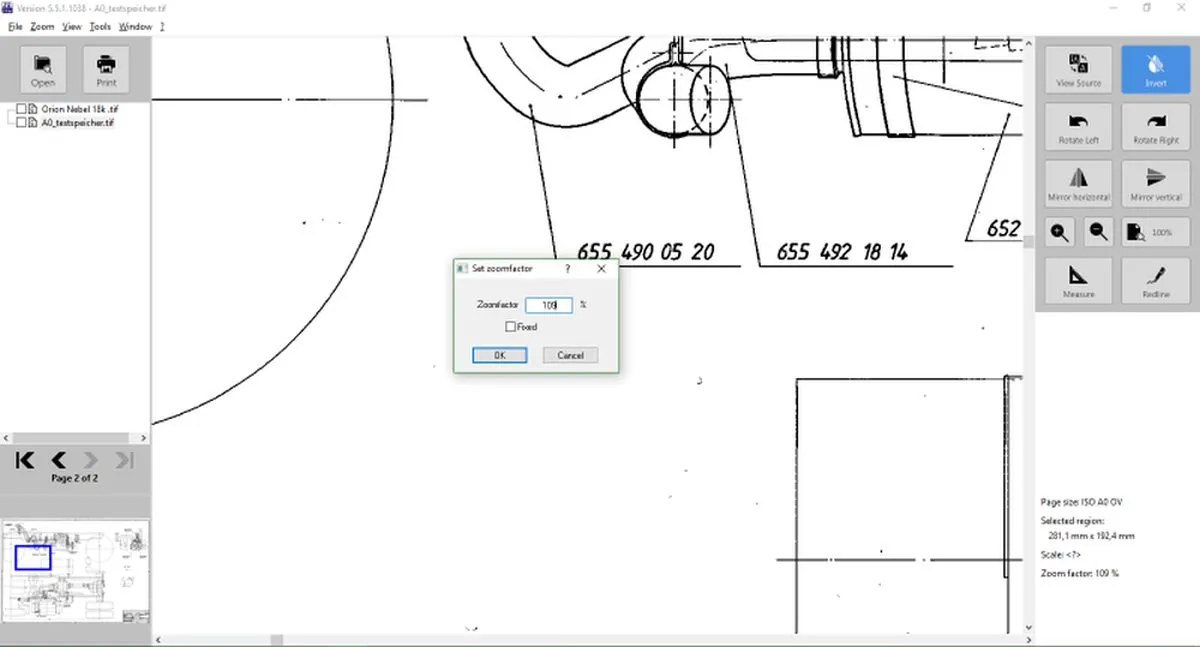
You can get to the "Set Zoom factor" menu by clicking on the "Zoom factor" in the task bar. If you klick there, a window will open with the menu. Now you can set the desired zoom factor. If you then check the "Fixed" checkbox, it will set the zoom which will be used in new documents as well. To disable the fixed zoom factor, deselect the checkbox again.
Hint: To set a fix zoomfactor you also can do it in the "Zoom" menu using "Set Zoomfactor...".
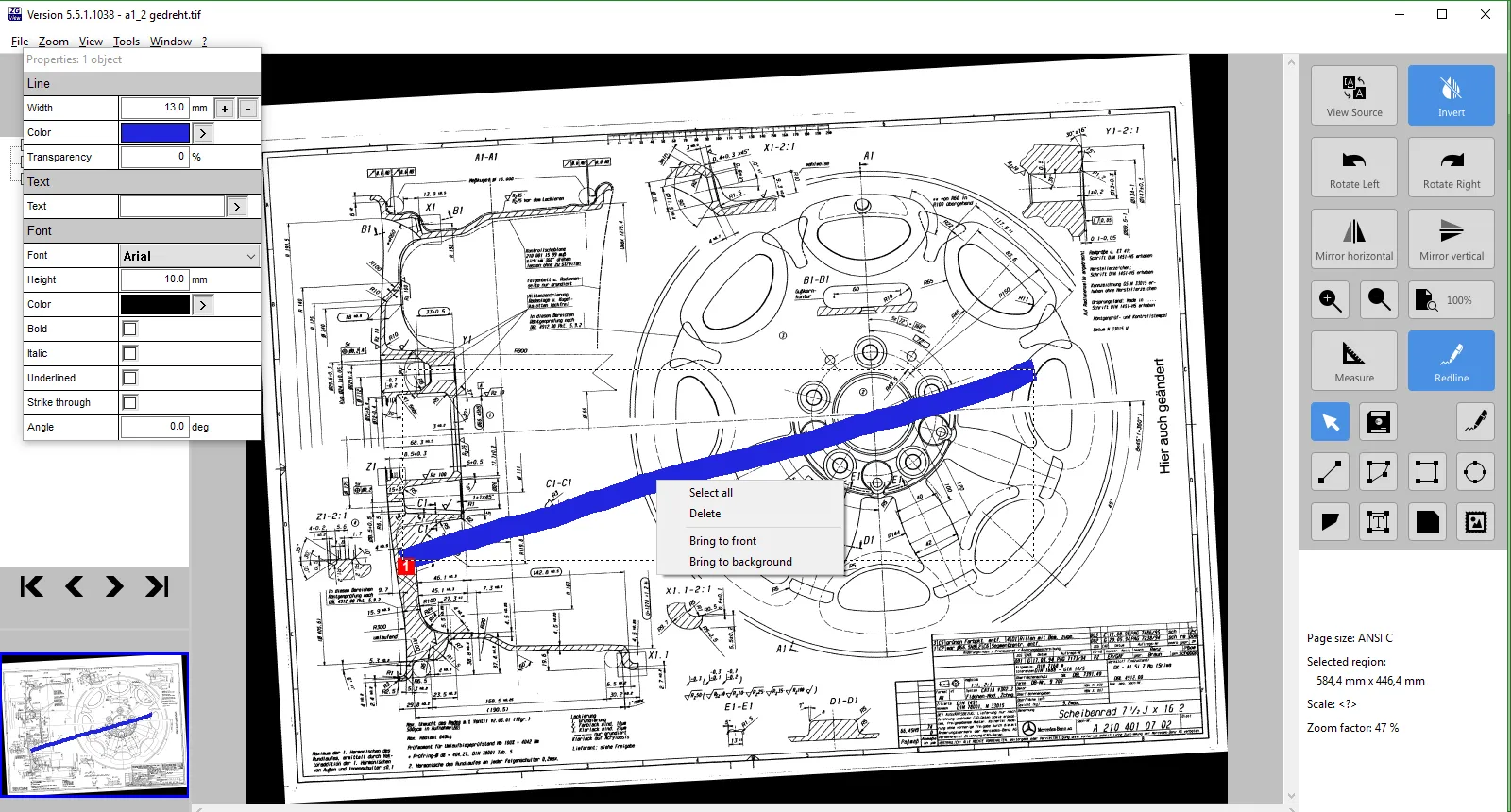
Delete redlining objects
To delete a redlining object, mark the object you want to delete with the "Select objects" arrow and right-click the object. Then click "Delete".
Browse in the navigation tree
To browse in the navigation tree, you can use the button bar or the keys "Home", "Page Up", "Page Down" and "End".
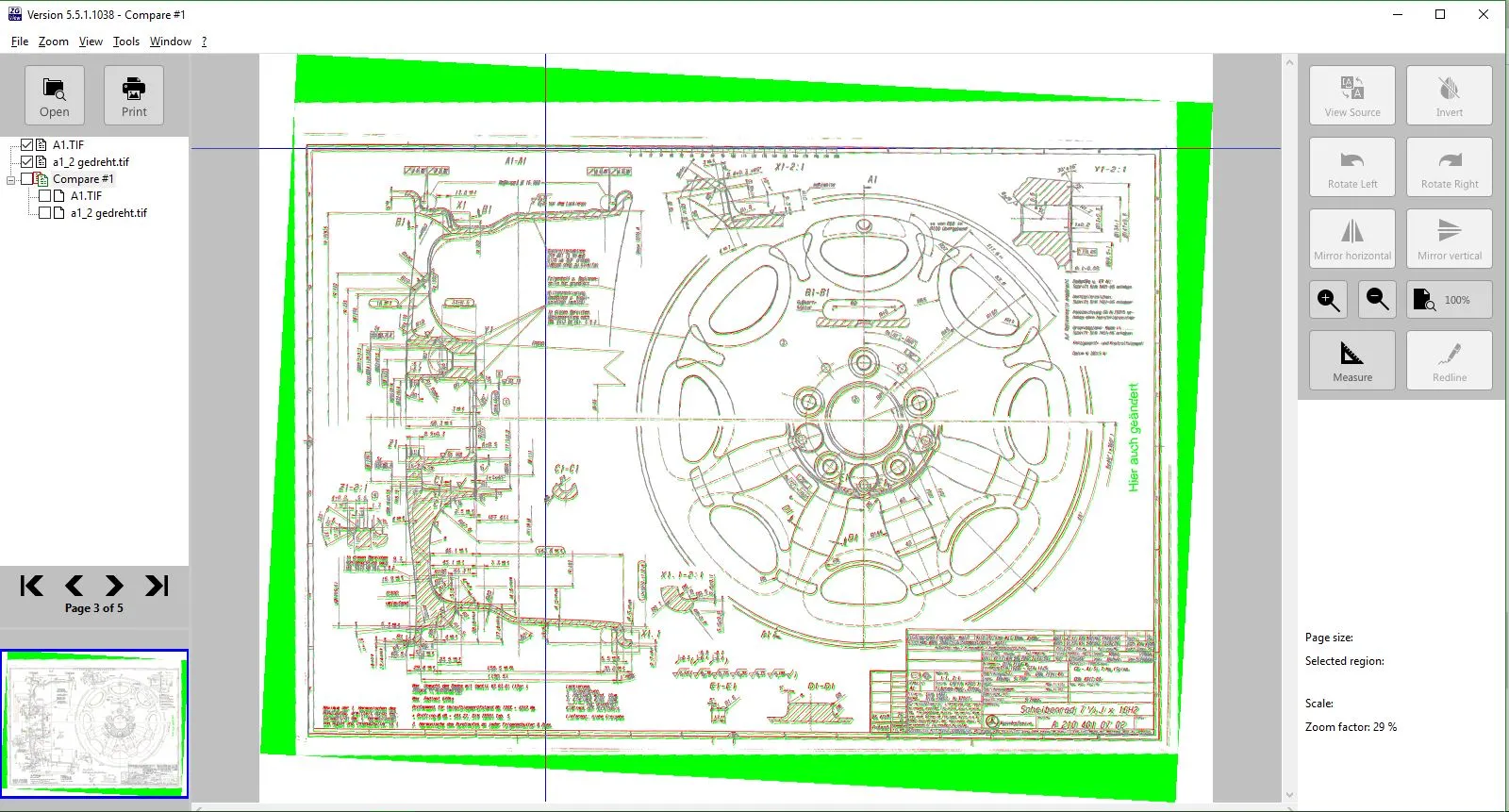
Comparison of versions - Create a comparison of versions
To create a version comparison, check the checkboxes of the documents you wish to compare, right-click one of them and then choose "Version comparison of the two selected documents".
.webp)
Comparison of versions - Set reference points
To ensure that you can align both documents precisely, you can set reference points (scanned documents are often slightly rotated). To position the reference points, select the first drawing. In the navigation tree, right-click to select 1-, 2-, or 3-point version comparison in the main area. In the main area, you will see 1, 2, or 3 red crosshairs. To move the first reference point, hold down the “1” key; to move the second reference point, hold down the ‘2’ key; to move the third reference point, hold down the “3” key on your keyboard and move the crosshair to the desired position. Repeat the process for the second drawing as well.
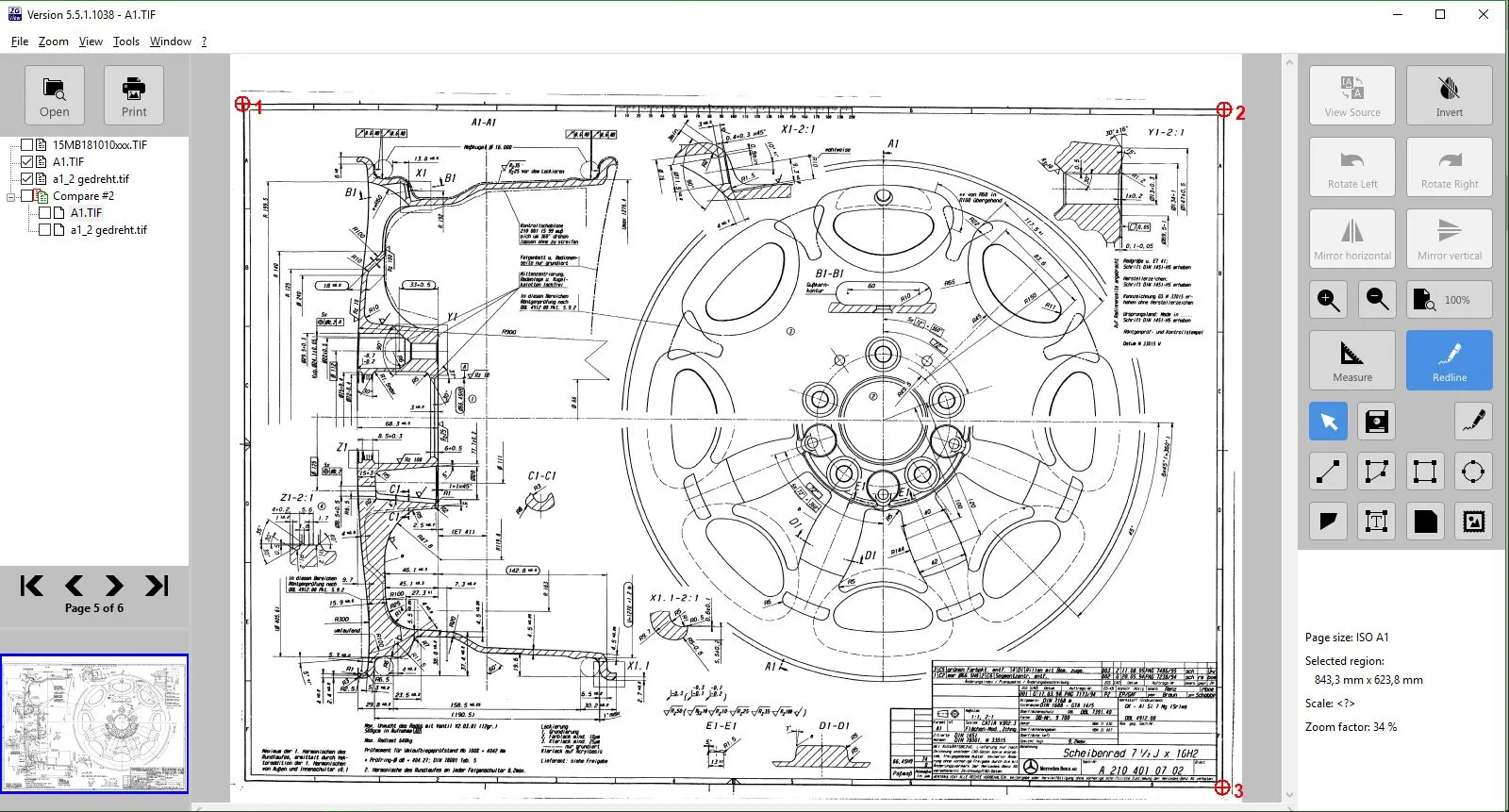
Comparison of versions - Result
To close the version comparison, right-click the comparison and click "Close".
Hotkeys
Here you can find all the hotkeys that can be used in ZG-View
Menu: File
Hotkeys
Ctrl+O Open File
Ctrl+F4 Close File
Ctrl+P Print
Alt+F4 Close ZG-View
Menu: Zoom
Hotkeys
+ Enlarge zoom section
- Reduce zoom section
ESC View the whole Page
Menu: View
Hotkeys
H Flip horizontally
V Flip vertically
Crtl+left Turn left
Crtl+right Turn right
I Invert
Crtl+N View Source
Pos1 First page
PgUp Previous page
PgDn Next page
End Last page
Crtl+G Set measure point
Menu: Tools
Hotkeys
Ctrl+B Screenshot
M Set measure point
Menu: ?
Hotkeys
F1 About ZG-View
Specific information Depending on the configuration, application-specific information can also be displayed at this point.